
Inside Orca — An Open-Source Agent IDE That Runs Coding Agents in Parallel, One Worktree Each
An analysis of stablyai/orca, which runs CLI coding agents such as Claude Code and Codex in parallel, one per git worktree, based on its docs and source layout. Covers architecture, remote runtimes, mobile, and security and telemetry caveats.
"I want to hand the same bug to Claude Code, Codex, and Cursor CLI at once, then ship only the best result as a PR."
Any team that uses coding agents all day has had this thought. The hard part is execution. When several agents share one working directory they overwrite each other's files, the terminal windows quickly pass ten, and it is easy to miss which agent is waiting for input.
Orca is an open-source project that wraps this problem into a single desktop application. The GitHub repository description reads "Orca lets you run a fleet of bots with your own subscription (e.g. Claude Code, Grok, Agy, Codex). Available on desktop, mobile and remote runtime.", and the official docs describe it as "a desktop IDE for running multiple AI coding agents side by side". The core design is simple: one git worktree per task, and one agent terminal inside that worktree.
The repository was created on March 17, 2026, and in a little over eight months it passed 133,000 GitHub stars and 8,500 forks (GitHub API, as of 2026-11-23). This post is based on a clone of the main branch as of 2026-11-23 (commit 15407c8): we read the README, the official docs-site source shipped in the repo (docs/site/content/docs), the package manifests, and the source directory layout. We did not run or build any of the code. Data Dynamics is not affiliated with Orca or Stably; this is a review of an external open-source project.
Summary: Orca is not a model. It is a work environment for launching, watching, and reviewing the CLI agents you already use. Its strength is bringing worktree management, state detection, diff review, and remote and mobile access into one place. On the other hand, it launches each agent with its permission-bypass flag by default, and its mobile and bot features go through cloud services operated by Orca, so security settings need a careful look before adoption.
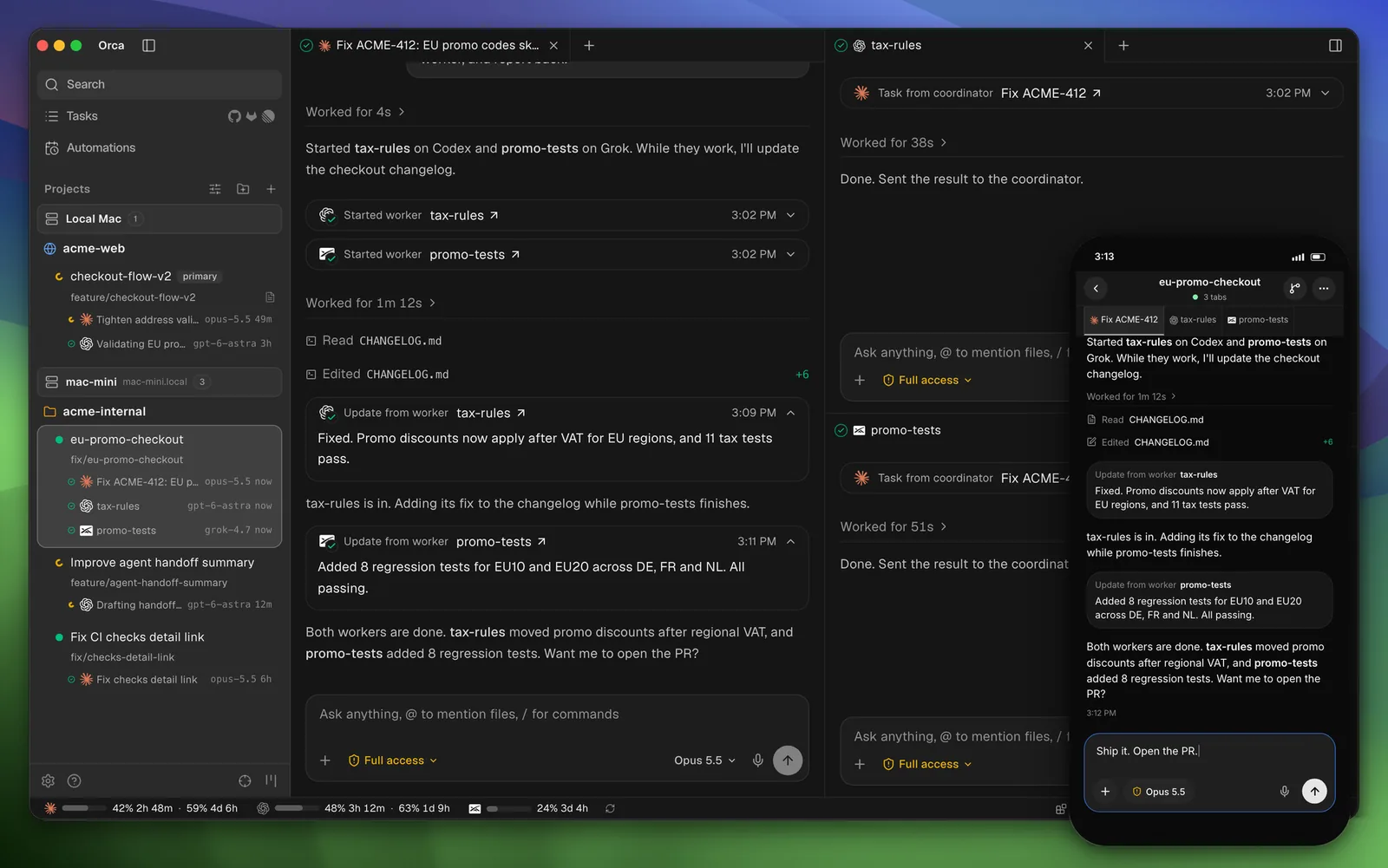
Orca's main screen. Source: stablyai/orca repository README (MIT)
The screen has four main areas.
| Area | What it shows |
|---|---|
| Left sidebar | Search, Tasks (work items from GitHub, Linear and others), Automations, and a tree of machine → repository → worktree → agent session. Each worktree shows its branch; each session shows its model and elapsed time, with a status icon for progress |
| Centre and right | The worktree's tabs and splits. You can use a structured Chat UI instead of a terminal; next to the input box are the current permission mode (Full access in the picture) and the model |
| Bottom status bar | Usage per agent provider and time until reset |
| Mobile app | Once paired, shows the same sessions on your phone and lets you send instructions |
At a glance
| Item | Details |
|---|---|
| Repository | stablyai/orca (MIT, LICENSE copyright Lovecast Inc.) |
| Size and activity | 133,199 stars, 8,512 forks, created 2026-03-17 (GitHub API, as of 2026-11-23) |
| Latest release | v1.4.271 (2026-11-22). 1,025 releases including prereleases since v1.0.12 on 2026-03-21 |
| Form factor | Electron desktop app (macOS, Windows, Linux) + iOS and Android mobile apps + headless server (orca serve) |
| Main stack | TypeScript, Electron 43, React 19, xterm.js, node-pty, Monaco Editor, ssh2 (per package.json) |
| Supported agents | 34 listed in the README, including Claude Code, Codex, Grok, Cursor, GitHub Copilot, OpenCode, Antigravity, and Qwen Code, plus "any CLI agent" that runs in a terminal |
| Models and billing | Orca provides no model. It uses the subscription and login each agent CLI already has |
| Remote execution | SSH hosts, Remote Orca Server (beta), per-workspace Cloud VMs (experimental, on your own cloud account) |
| Telemetry | Anonymous usage data sent to PostHog Cloud (US region); can be turned off in settings or via environment variables |
What problem does it solve
Running agents in parallel runs into four practical problems.
- Workspace collisions — Two agents editing the same files in one checkout overwrite each other. Switching branches and stashing does not work while agents are running.
- State tracking — To know which of five agents has finished and which is stuck on a permission prompt or a question, you have to open each terminal.
- Review bottleneck — Reviewing an agent's diff line by line and passing feedback back to the agent relies on copy and paste.
- Where it runs — Close the laptop and the agents stop. You may want heavy repos to build on a remote dev server, but then you lose the IDE experience.
On this blog, Running Claude Code and Codex Side by Side in One Repo with git worktree and Keeping Claude Code and Codex Sessions Alive with tmux — and Managing Tokens covered solving problems 1 and 4 by hand with git worktree and tmux. Orca automates that manual work through a GUI and a CLI, and handles problems 2 and 3 on the same screen.
Architecture
Simplifying the components based on the docs and the source directories (src/main, src/renderer, src/cli, mobile/, cloud/):
Here is what we confirmed for each component.
Desktop app. The entry point in package.json is out/main/index.js, built with electron-vite, and the dependencies include Electron 43.8.10, React 19.2, an xterm.js 6.1 beta, node-pty, Monaco Editor, and ssh2. The docs describe the terminal as "the same xterm.js-based terminal VS Code uses". Under src/main there are dozens of per-agent directories such as claude, codex, cursor, gemini, grok, and opencode, which shows that per-agent integrations (state, usage, account switching) are built on top of a generic terminal launcher.
Launching agents. As the supported-agents page puts it, "the agent combobox just launches a process in a terminal". When you create a worktree and pick an agent, Orca launches that CLI with the worktree path as its working directory. Claude Code picks up ~/.claude with no extra configuration. In other words, authentication is each CLI's existing login, and Orca does not proxy model APIs. There is also a Chat UI (structured chat) that you can use instead of the raw CLI, and @anthropic-ai/claude-agent-sdk is among the dependencies.
State detection. Whether an agent is working or waiting for input is detected from the terminal's OSC title sequence and agent hooks. Claude Code is launched with a status-line hook. When an agent goes from working to idle, Orca fires a desktop notification, a sound, and a chip on the worktree, and the same signal is mirrored as a mobile push.
Terminal daemon. According to the session-restore page, a background daemon manages the PTYs, so closing the app window or an app crash does not stop the agent processes, and on the next launch Orca reattaches to the same processes. If the host itself goes down (reboot, OS update), the processes are gone and only the layout and last scrollback are restored. The app takes over the "keep the session alive" role that tmux used to play.
Core features
A worktree-centric work model
The docs call Orca "worktree-native". Each repo has a base ref (usually origin/main), and when you create a worktree you choose its start-from ref: the base ref, another local branch, a specific commit, or a remote branch. Once you submit, git fetch and git worktree add continue in the background.
A new worktree is a clean checkout, so gitignored things like node_modules or .env are missing. Orca fills the gap in three ways.
- Worktree Shared Paths in repo settings — paths from the primary checkout materialize in each new worktree (an APFS clone on macOS when possible, otherwise a symlink).
worktree.sharedDirectoriesinorca.yamlat the repo root — large gitignored directories shared by link..worktreeincludeat the repo root — gitignored files such as.envthat each worktree needs its own copy of (literal paths only for now, no globs).
# orca.yaml (repo root)
scripts:
  setup: |
    pnpm install
worktree:
  sharedDirectories:
    - node_modules
    - .cache
scripts.setup in orca.yaml is a setup script that runs in the new worktree, and setupAgentStartupPolicy decides whether the agent starts only after setup finishes. Every worktree is a real git worktree, so you can use git rebase or git cherry-pick in a terminal, and worktrees you created yourself with git worktree add can be shown in the sidebar. Deleting a worktree removes both the directory and the branch (with confirmation); if git refuses to drop a branch because it may hold unmerged commits, Orca keeps the branch and offers a review step.
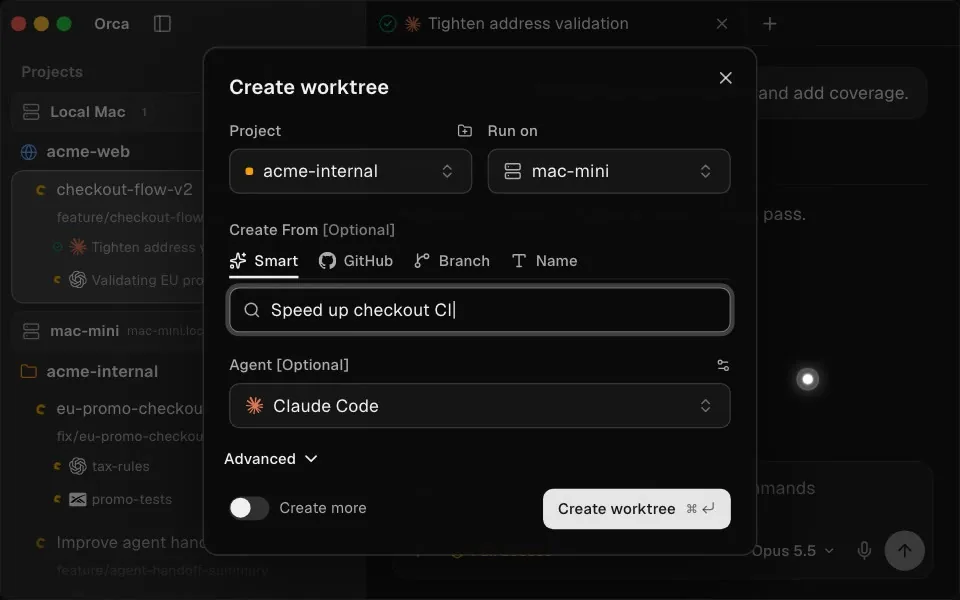
The worktree dialog: repository, machine, starting point and agent in one step. Source: stablyai/orca repository README (MIT), original animation

Handing the same task to several agents
The flagship recipe in the docs is "race three agents on the same task". Create three worktrees from the same start-from ref, launch Claude Code, Codex, and Cursor CLI in them, and paste the same prompt. When they finish, compare the diffs, commit and open a PR from the best one, and delete the rest. The docs give the rationale: where three agents agree, the answer is probably right; where they split, you have found the hard part. Cmd-J (Ctrl-Shift-J on Windows and Linux) jumps between worktrees, and the sidebar status indicators show progress.
Diff review and Annotate AI Diff
Each worktree has a diff viewer against its start-from ref, with a combined diff across staged, unstaged, and untracked files, image diffs, and a three-way merge-conflict view. Annotate AI Diff lets you leave comments on changed lines and then send them to an agent as one batch with Send to agent. The docs argue that sending comments one at a time makes the agent swing back and forth, so batching one review into one revision pass works better. There is also Git integration for drafting commit messages and PRs, and for sending failing CI checks or PR review comments back to an agent.
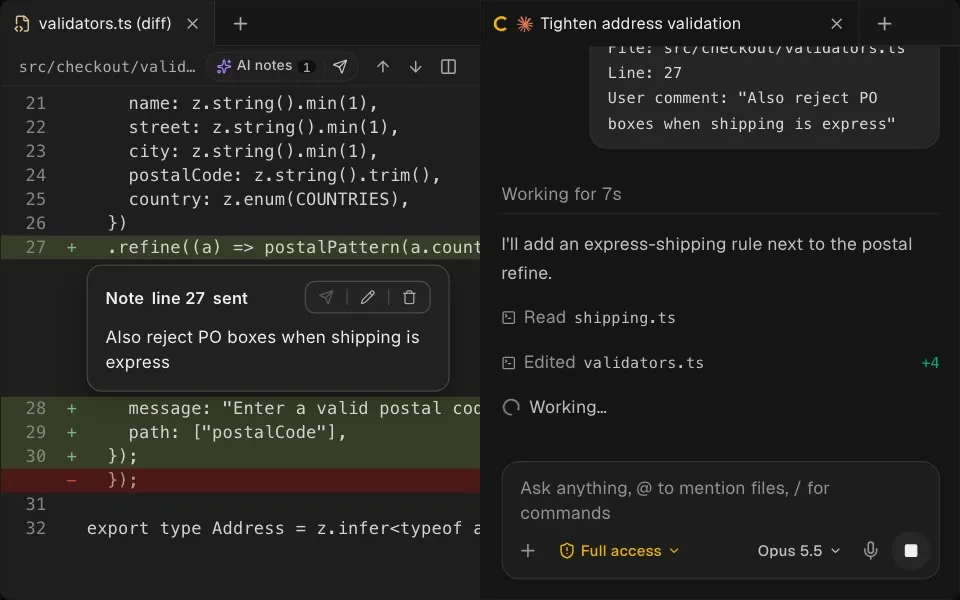
A comment on a specific diff line goes to the agent, which starts the fix right away. Source: stablyai/orca repository README (MIT), original animation

A per-worktree browser and Design Mode
Each worktree gets a Chromium browser pane with an address bar, history, and devtools, and tabs are scoped per worktree. Turn on Design Mode, click an element on the page, and Orca captures the element's HTML (plus a small neighborhood), its computed CSS, a cropped screenshot, and, when a dev-mode source map is available, the source file and line, then drops all of it into the active agent as one attachment. For UI requests like "tighten the spacing on this button", it saves you from describing the element in words.
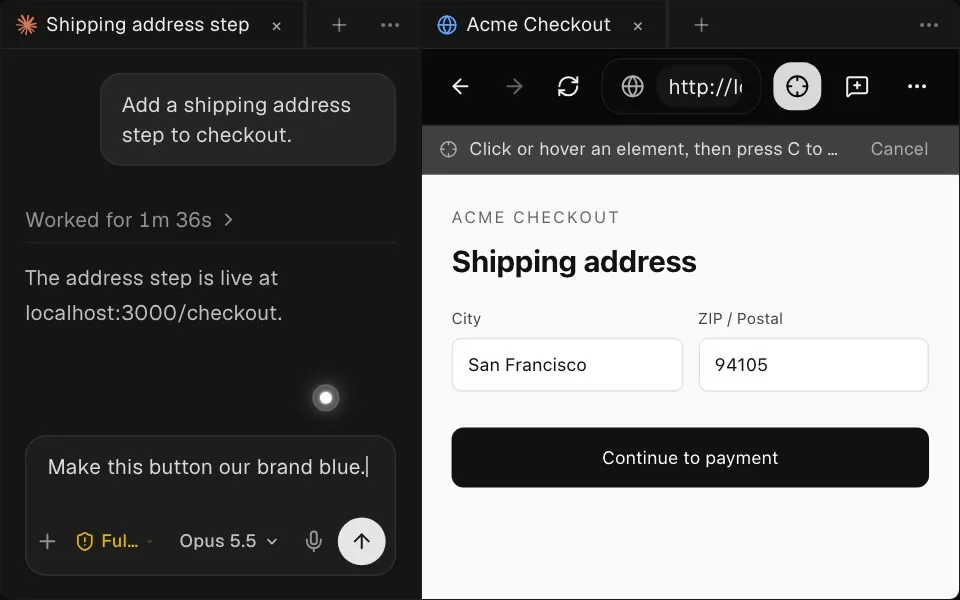
Design Mode: pick an element in the built-in browser and ask the agent to change it. Source: stablyai/orca repository README (MIT), original animation

The Orca CLI and orchestration
The orca CLI ships with the desktop app and scripts a running Orca instance. On Linux, the GNOME screen reader called Orca already owns /usr/bin/orca, so the command is orca-ide (bare orca works inside terminals Orca manages).
orca status --json
orca worktree ps --json
orca worktree create --repo id:<repoId> --name my-task --issue 123 --json
orca terminal send --text "npm test" --enter --json
orca terminal wait --for tui-idle --timeout-ms 30000 --json
This is why the README stresses "anything you can do in Orca, your agents can do too": an agent can use this CLI to create worktrees and start other agents.
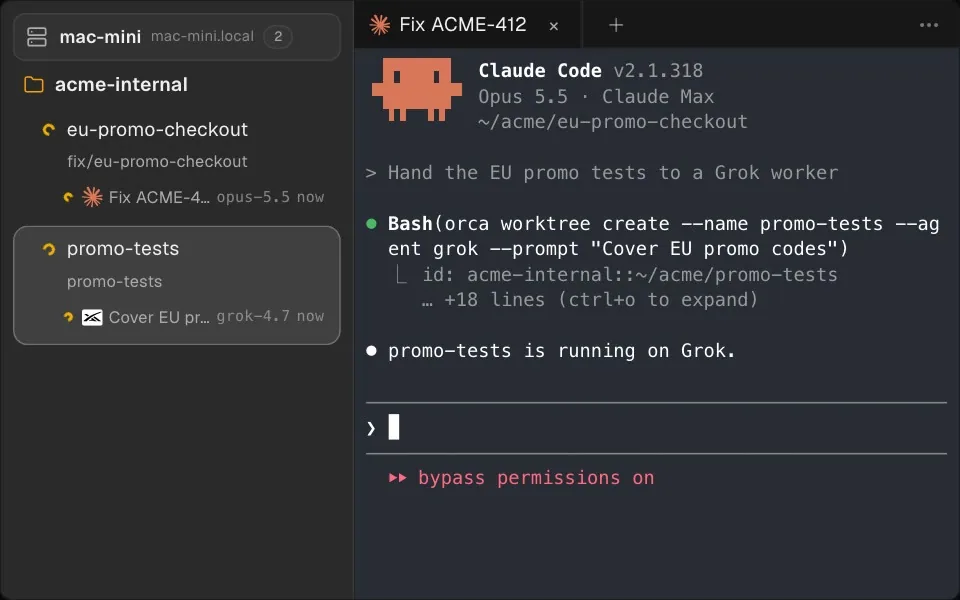
An agent starting another agent with orca worktree create. The bypass permissions on line at the bottom means this agent runs without permission prompts (see Settings to change first below). Source: stablyai/orca repository README (MIT), original animation

On top of that sits orchestration, an experimental feature built from a Run (a namespace and coordinator inbox), Tasks (spec, dependencies, status), Dispatches (one attempt of a task on a terminal), Messages, and Decision gates (questions that block a task until the coordinator resolves them). A coordinator agent splits the work and assigns it to worker agents.
orca orchestration run-create --objective "Split checkout QA and summarize blockers"
orca orchestration task-create --spec "Audit billing settings for mobile layout" --task-title "Billing audit"
orca orchestration worker-start --task <taskId> --worktree current --agent codex
It has to be enabled under Settings → Experimental, and the docs note that older commands (such as orca orchestration run) no longer have any effect. Read that as a sign the feature set is still moving fast.
Where it runs: local, SSH, Remote Orca Server, Cloud VM
| Mode | Where files and agents live | Notes |
|---|---|---|
| Local | Your desktop | The default |
| SSH target | A remote host reached over SSH | Worktrees and agents run remotely; editor, diff, and UI stay on the laptop |
| Remote Orca Server (beta) | A machine running Orca desktop or orca serve | The server manages projects, worktrees, terminals, and agents; laptop, web, and mobile are clients |
| Cloud VM (experimental) | A VM, sandbox, or Docker container per worktree | Created from a recipe in the repo (orca.yaml + lifecycle scripts), on your own cloud account |
SSH mode imports ~/.ssh/config and verifies host keys against known_hosts. On the first connection, Orca installs itself on the remote host over your SSH connection, and remote terminal sessions are held by a relay on that host, so they keep running when you close the app on your laptop. Key passphrases are kept in memory only for the app session by default.
For Remote Orca Server, the setup the docs recommend is "Orca desktop on both computers, plus Tailscale". On a headless Linux server it starts like this:
orca-ide serve --bind <server-tailscale-ip> --pairing-address <server-tailscale-ip>One thing to watch: agent logins must exist on the server separately. Your laptop's Claude Code or Codex login does not carry over, so you register accounts from the server shell with orca account add --agent claude and similar. The pairing URL grants access to the runtime itself, and the docs warn you to treat it like a password.
The mobile app and notifications
Once you pair the iOS or Android app with a desktop, you can work with agent status, recent terminal output, terminal input, source control, and agent accounts from your phone, and get a push notification when an agent finishes. There are two connection paths: a direct connection over LAN or Tailscale to the desktop's port (6768 by default), or Orca Relay (relay.onorca.dev), operated by Orca. Relay requires the desktop to be signed in; phone and desktop each open an outbound WebSocket and the relay splices them together (per cloud/README.md in the repo). The relay and push gateway source is published under cloud/, but the README states that the connector service that receives Slack, Linear, and GitHub events is hosted by Orca and is not in the repository.
Other features
- Usage and account switching — shows usage and reset times for Claude Code, Codex, and others in the status bar, and switches between multiple Claude or Codex accounts without logging out.
- Orca Bots (beta) — ask a bot in Slack, Linear, or GitHub to fix a bug, and it works on your own Claude Code or Codex and comes back with a PR. A bot's soul and memory are Markdown files,
SOUL.mdandMEMORY.md. - Automations — scheduled prompts per repo (nightly dependency bumps, weekly triage, and so on).
- Computer use, a mobile emulator, dictation, plugins, and more are listed in the README, which says "we ship daily, so this list is perpetually behind. The changelog is the real feature list."
Install and your first session, step by step
Following the official guide "Your first 3-agent session", here is the path from installation to racing three agents and shipping one PR. The docs say it takes under five minutes.
Step 0: Install
Download the desktop app from GitHub Releases. The latest release, v1.4.271, includes macOS dmg files (Apple Silicon and Intel), a Windows installer, Linux AppImage, .deb and .rpm packages (x64 and arm64), and orca-server-linux-*.tar.gz for headless servers. Package managers work too:
# macOS (Homebrew). Bare 'orca' is an unrelated Plotly cask, so use the full name
brew install --cask stablyai/orca/orca

# Arch Linux (AUR)
yay -S stably-orca-bin
The app auto-updates on the stable channel by default. On Linux, .deb and .rpm installs do not self-update; Orca hands you an install command instead and never escalates privileges itself.
Step 1: First launch
On first launch Orca asks for access to your home directory so it can add repositories, and offers to import ~/.claude, ~/.codex and Ghostty terminal settings if present. You then land on an empty start screen.
For work use, apply the settings to change first before launching any agent. In particular, the default permission mode skips permission prompts.
Step 2: Add a repository
Click Add Repo in the sidebar and point Orca at a local checkout. Orca reads the repo's git state and takes the default branch as the base ref — the ref every new worktree branches from. You can change it later in the repository settings.
Step 3: Create a worktree
Click + next to the repository name to open the Create worktree dialog shown earlier.
- Task name — e.g.
fix-login-race. Leave it blank and Orca names it after a marine creature. - Start-from ref — usually the base ref (
origin/main), but any branch or commit works. - Run on — the machine to run on: local, or an SSH or remote server you have registered.
- Agent — your default agent (set under Settings → Agents) is preselected; you can also start with an empty terminal.
Orca creates a real git worktree under its managed directory, checks out the branch and opens it.
Step 4: Pick an agent
In the new worktree's terminal, choose Claude Code, Codex, Cursor CLI or another supported agent in the agent combobox. Orca launches that CLI with the worktree as its working directory, using the CLI's existing login.
Step 5: Race three agents on the same task
Repeat steps 3 and 4 twice more to get three worktrees:
| Worktree | Agent |
|---|---|
fix-login-race | Claude Code |
fix-login-race-2 | Codex |
fix-login-race-3 | Cursor CLI |
Paste the same prompt into each. Three branches, three diffs, side by side.
Step 6: Watch them work
Each worktree keeps its own layout, so switching worktrees swaps the whole view. The sidebar's status indicators show which agent is working, done or waiting on you; click to jump, or use the shortcut.
| Action | macOS | Windows and Linux |
|---|---|---|
| Jump between worktrees | Cmd-J | Ctrl-Shift-J |
| Split the view | Drag a tab to a pane edge | Same |
Step 7: Pick a winner, review, ship
When the agents settle, open each worktree's diff view. On the best result, leave line comments with Annotate AI Diff and send them in one batch with Send to agent; once the fixes are in, commit, push and open the PR from inside Orca. Delete the other two worktrees with one click — their branches go with them.
The docs describe this loop (add → worktree → agent → watch → diff → ship) as the whole of Orca; every other page goes deeper into one of these steps.
Settings to change first
If you use Orca on work repositories, check these three settings before your first session. All three are on by default.
1. Set the permission mode to Manual — under Settings → Agents → Agent Permissions, choose Manual. The default (Yolo) launches each agent with its permission-bypass flag, such as Claude's --dangerously-skip-permissions. If you have already customised an agent's launch arguments or environment, Orca leaves that agent out of the global switch, so check it separately.
2. Turn off telemetry — under Settings → Privacy, switch off "Share anonymous usage data". The change is immediate and persistent. For fleet installs, DO_NOT_TRACK=1 or ORCA_TELEMETRY_DISABLED=1 disables it too.
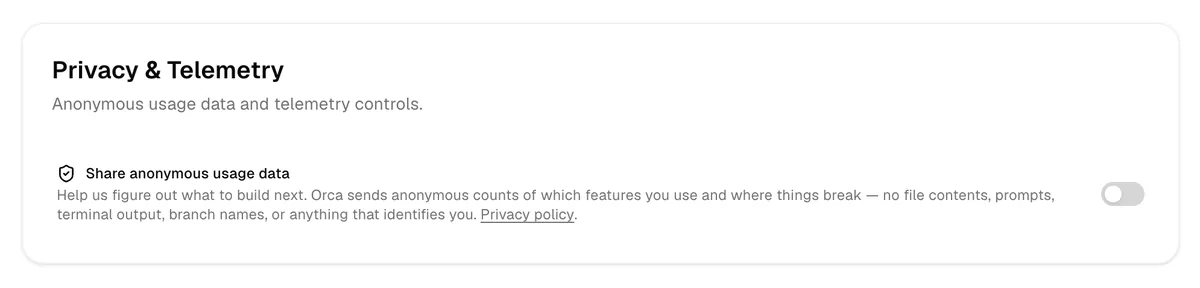
Settings → Privacy. Source: stablyai/orca official docs, Privacy & Telemetry (MIT)
3. Turn off Claude usage polling (optional) — switching off Settings → Accounts → Claude → Claude usage polling stops Orca from calling https://api.anthropic.com/api/oauth/usage with your Claude Code login. The persisted value is claudeOAuthUsageEnabled: false, and it must be set on every host that runs agents, headless servers included.
Compared with the manual approach (tmux + git worktree)
| Aspect | Hand-rolled tmux + git worktree | Orca |
|---|---|---|
| Creating and cleaning up worktrees | git worktree add/remove and branch cleanup by hand | Dialog or CLI; deleting also removes the branch |
| Preparing gitignored files | Your own scripts | Shared Paths, sharedDirectories, .worktreeinclude, scripts.setup |
| Keeping sessions alive | tmux sessions | Terminal daemon (survives app quit); a remote relay for SSH |
| Knowing agent state | Check each pane; homemade notification hooks | Status indicators, desktop notifications, mobile push |
| Diff review | git diff, a separate editor | Built-in diff viewer; batch line comments back to the agent |
| Remote access | SSH + tmux attach | SSH targets, Remote Orca Server, mobile app |
| Transparency and dependencies | Every tool is visible; no external services | A large Electron app; some features use Orca's cloud services |
| Pace of change | Close to none | 1,025 releases in a little over eight months |
In short, if you are comfortable running two or three agents in terminals, tmux + git worktree is enough. Once the number of agents grows and state tracking and review become the bottleneck, an integrated environment like Orca starts to pay off. There are also tools that tackle the same problem as a terminal multiplexer (herdr, for example), so choose based on how your team works.
Limitations and adoption caveats
1. Permission bypass is the default. According to the supported-agents page, Orca pre-fills each agent's permission-bypass flag for new launches: --dangerously-skip-permissions for Claude, --dangerously-bypass-approvals-and-sandbox for Codex, and --yolo for Gemini, Cursor, and others. The docs themselves warn that "a worktree is an isolated checkout, not a security sandbox: the agent can still access files and network resources available to its process", and recommend choosing Manual under Settings → Agents → Agent Permissions unless you trust the agent and the task. For work repositories, this is the first setting to change.
2. Mobile pairing is effectively remote shell access. A paired phone can read workspace files, send terminal input, and control agents. The docs state plainly that pairing "is not an enterprise read-only or per-repository sandbox". They also note that the desktop can deliver mobile web UI and JavaScript independently of a store update; these are checked against manifest hashes but do not get a separate publisher signature or store review. If a phone is lost, revoke it from the desktop side, not from the phone.
3. Check how subscriptions and credentials are used. Orca uses each CLI's existing login, and offers both account switching across multiple accounts and unattended agent runs through bots and automations. Claude usage polling is also on by default and periodically calls https://api.anthropic.com/api/oauth/usage with your existing Claude Code login token (it can be turned off in settings). Whether rotating several personal subscription accounts, or using them for unattended automation, is consistent with each provider's terms and your company policy is for you to verify, not Orca.
4. Telemetry is on by default and can be turned off. Per the settings type definition in the source (src/shared/telemetry/telemetry-settings-types.ts), new installs start with consent enabled, and packaged builds send anonymous usage data to PostHog Cloud in the US region. According to the docs, Orca never sends file contents, prompts, agent or terminal output, repo or branch names, paths, or URLs; it collects things like which agents you use, daily token totals, and how a workspace was created and how long it took. You can turn it off with "Share anonymous usage data" under Settings → Privacy, or with the DO_NOT_TRACK=1 or ORCA_TELEMETRY_DISABLED=1 environment variables. In the source, CI environment variables such as CI or GITHUB_ACTIONS also disable transmission.
5. In enterprise and air-gapped environments, map external dependencies feature by feature. Local worktree, terminal, and diff features run locally, but Orca Relay (login.onorca.dev, relay.onorca.dev), mobile push, and bot connectors go through services Orca operates. Auto-update is also on by default. We did not verify whether Orca works in an air-gapped environment. If you are designing an air-gapped coding-agent platform, it is safer to first decide where model serving, authentication, and audit logs live, as discussed in Inside IBM Bob (Part 2) — Designing an Open-Source Coding Agent Platform for Air-Gapped Environments, and then evaluate Orca as a candidate work environment on top.
6. It changes very quickly. From 2026-03-21 to 2026-11-22 there were 1,025 releases including prereleases. Even the latest v1.4.271 release notes list a known issue: "after the app restarts, or after an error such as hitting a usage limit, a bot can stop partway through its work." Remote Orca Server is beta, and orchestration and Cloud VM are experimental. For team rollouts, stick to the stable channel and have a step to check behavior right after updates.
7. It is a heavy client. The Electron app bundles a browser, an editor, a terminal daemon, and per-agent integrations. Resource usage grows with the number of agents you run on one machine (we did not measure this), so it is worth considering splitting heavy work out to SSH targets or a Remote Orca Server.
Wrapping up
Orca is not about making agents smarter; it is about the work environment of a person running many agents at once. One git worktree per task, agent state detection, a review loop that batches line comments back to the agent, and a remote runtime that keeps going when you close the laptop are all things many teams were already approximating with tmux and shell scripts.
If you are evaluating it, start by switching the permission mode to Manual, checking the telemetry and usage-polling settings, and enabling features that go through external services (mobile, Relay, bots) only when you need them. Even if you only want to design a parallel-agent workflow yourself, the docs' "Your first 3-agent session", the worktree page, and the orca.yaml reference are well worth reading.
References
- GitHub: stablyai/orca, Releases
- Official docs: Worktrees, Ways to run Orca, Supported agents, Privacy & Telemetry, Mobile
- Related posts: Running Claude Code and Codex Side by Side in One Repo with git worktree, Keeping Claude Code and Codex Sessions Alive with tmux — and Managing Tokens, Inside IBM Bob (Part 2) — Designing an Open-Source Coding Agent Platform for Air-Gapped Environments